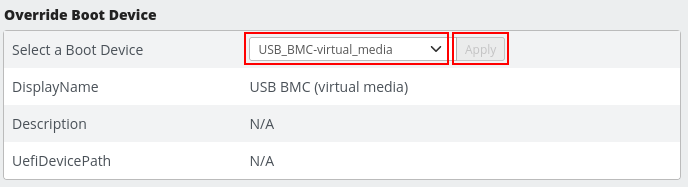
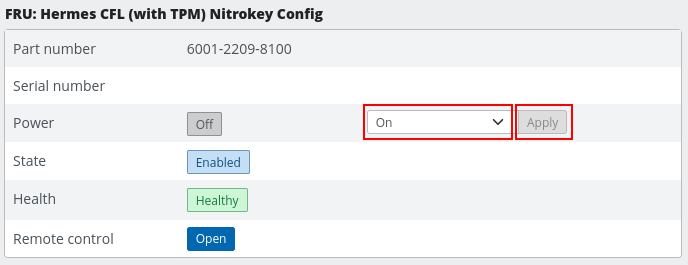
The system software update can be performed as follows.
Download the installer image ending with installer.img.zip from the provided private download page.
インストーラーイメージを解凍する。
Write the installer image to a USB flash drive.
For this you could use the graphical tool balenaEtcher.
On Linux you could also use the command line tool dd.
Ignore any warning that a partition table is missing.
Some USB drives are incompatible with the NetHSM.
This results in the NetHSM not recognizing them as a boot media.
In case the NetHSM does not boot from the connected USB drive, try a different USB drive model.
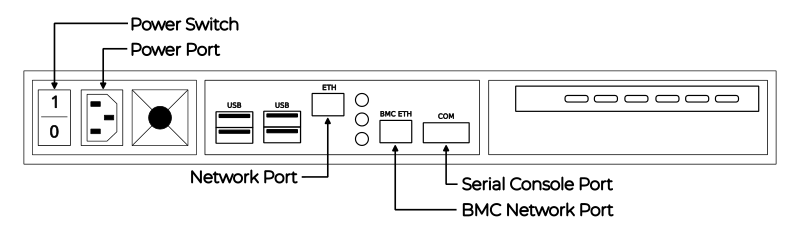
NetHSMの電源を切り、電源ケーブルを抜いてください。
Connect a monitor and optionally a keyboard to the NetHSM.
注釈
USBポートには、キーボードとUSBメモリのみが接続されていることを確認してください。
Connect the NetHSM to power and wait for 10 seconds.
Turn on the NetHSM by pressing the power button on the front.
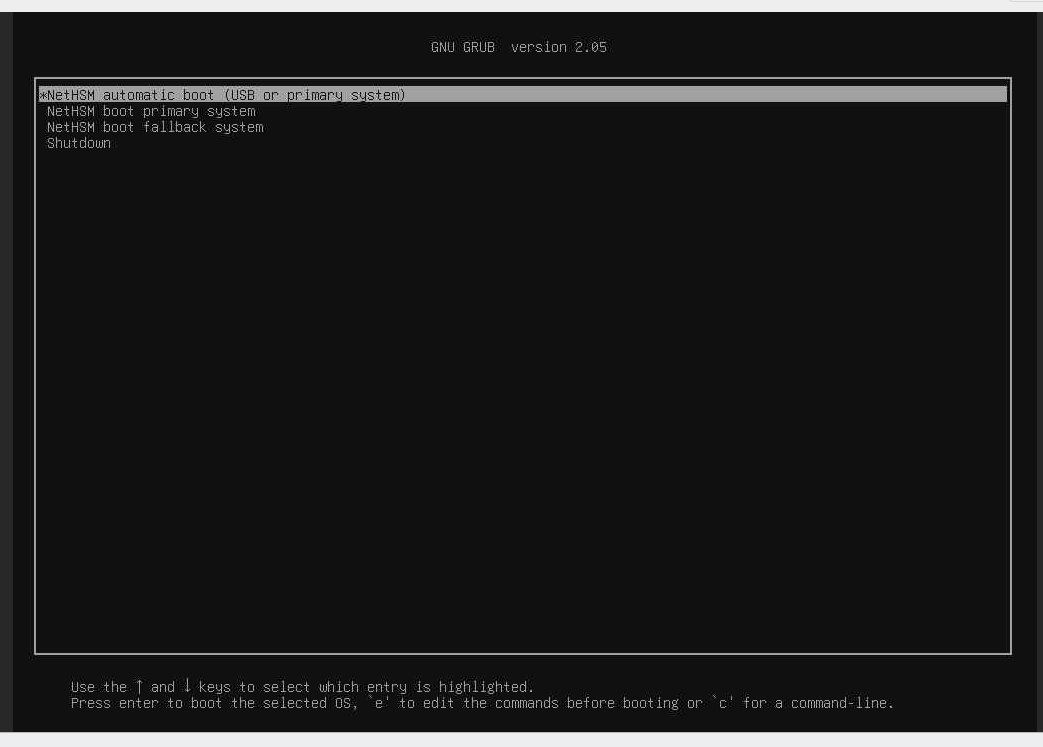
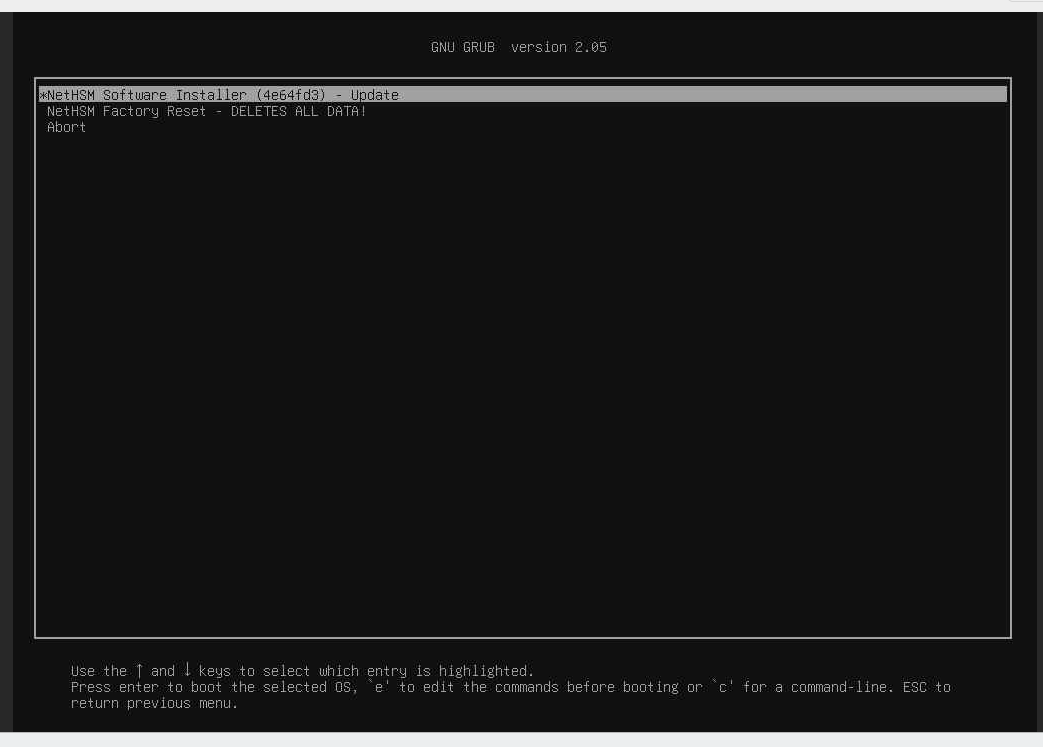
Alternatively you can select NetHSM automatic boot (USB or primary system) in the first boot menu and then NetHSM Software Installer in the second boot menu.
警告
Do NOT select NetHSM Factory Reset - DELETES ALL DATA! from the menu.
This will irrecoverably wipe the data on the disk.
Turn on the NetHSM by pressing the power button on the front.
Download the installer image ending with installer.img.zip from the provided private download page.
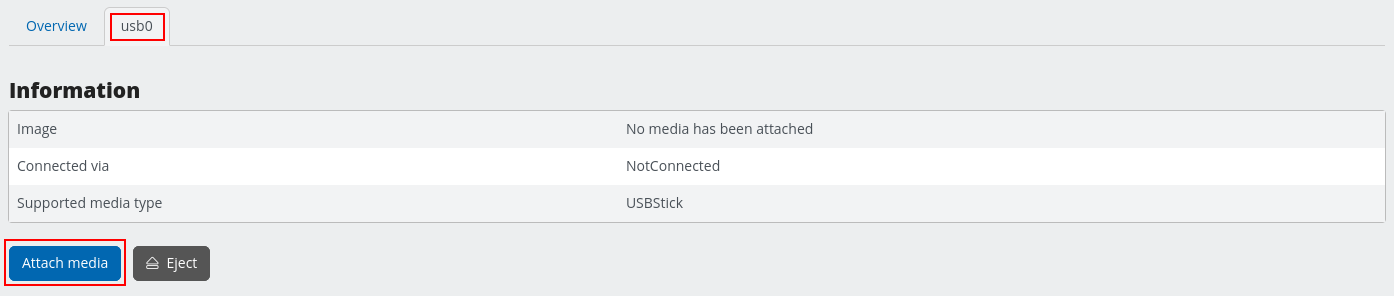
Mount the downloaded installer image by clicking in the menu on the left on FRU: Hermes CFL (with TPM) Nitrokey Config followed by Virtual media in the submenu.
In the middle open the tab usb0, and click the button Attach media.
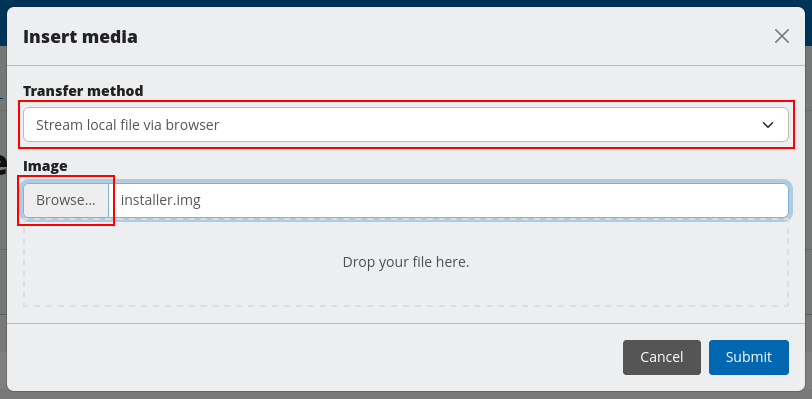
In the opening dialog choose Stream local file via browser as the Transfer method.
Click the button Browse... and choose the downloaded installer image.
Confirm the operation with the Submit button.