Hieronder wordt het proces voor het updaten van de NetHSM-systeemsoftware beschreven. Deze installatiemethode mag alleen worden gebruikt als de update die wordt beschreven op Software Update niet beschikbaar is. Volg de instructies nauwkeurig op om te voorkomen dat er per ongeluk gegevens worden gewist. Het wordt aanbevolen om een back-up van de NetHSM te maken voordat u de update uitvoert.
The system software update can be performed as follows.
Download the installer image ending with installer.img.zip from the provided private download page.
Pak het installatie-image uit.
Write the installer image to a USB flash drive.
For this you could use the graphical tool balenaEtcher.
On Linux you could also use the command line tool dd.
Ignore any warning that a partition table is missing.
Sluit de USB-stick aan op een willekeurige USB-poort aan de voorkant of op een van de twee USB 2.0-poorten die zich in het midden van de achterkant van het apparaat bevinden. De USB 2.0-poorten hebben een zwart inzetstuk in het midden van de poort.
Notitie
Some USB drives are incompatible with the NetHSM.
This results in the NetHSM not recognizing them as a boot media.
In case the NetHSM does not boot from the connected USB drive, try a different USB drive model.
Schakel de NetHSM uit en koppel deze los van de stroomvoorziening.
Connect a monitor and optionally a keyboard to the NetHSM.
Notitie
Zorg ervoor dat alleen het toetsenbord en de USB-stick op de USB-poorten zijn aangesloten.
Connect the NetHSM to power and wait for 10 seconds.
Turn on the NetHSM by pressing the power button on the front.
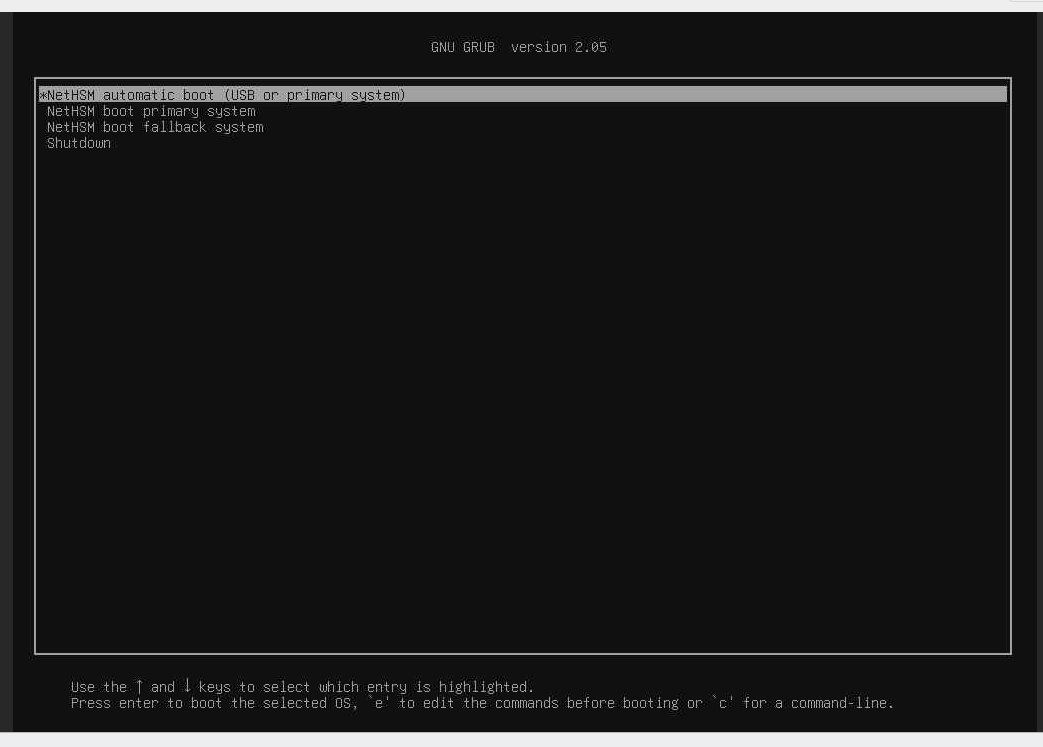
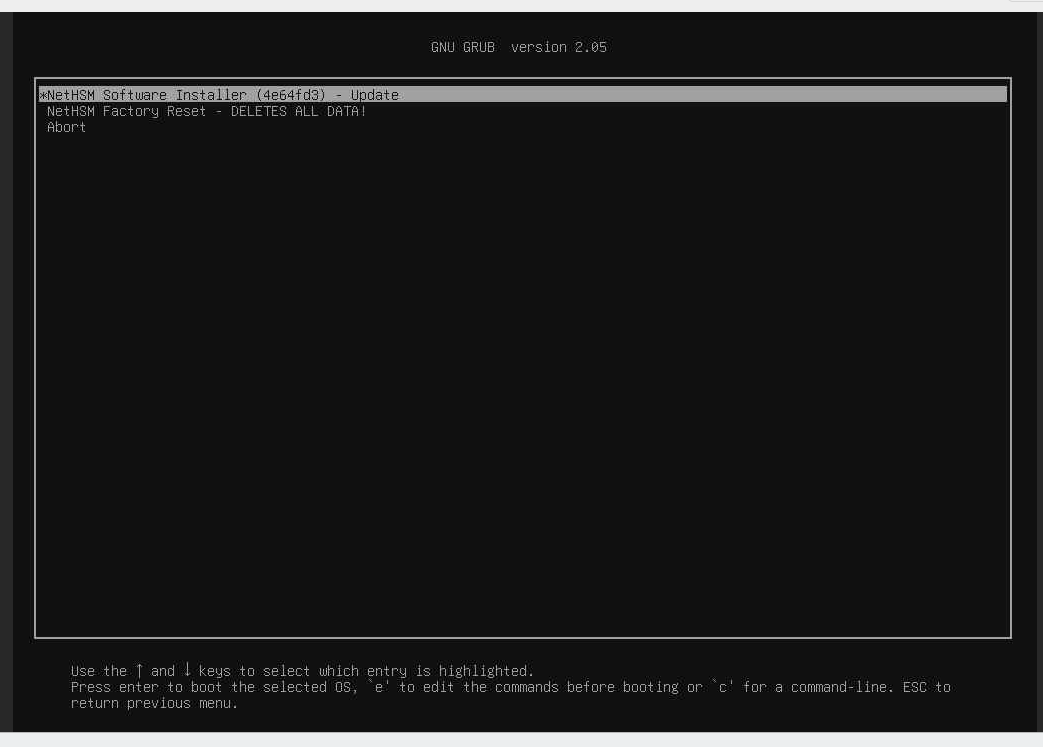
Na ongeveer 30 seconden geeft de NetHSM een opstartmenu weer op het scherm. Het opstartmenu is standaard ingesteld om de software-update uit te voeren. Dit duurt ongeveer 2 minuten. Het apparaat wordt na de update automatisch uitgeschakeld.
Alternatively you can select NetHSM automatic boot (USB or primary system) in the first boot menu and then NetHSM Software Installer in the second boot menu.
Waarschuwing
Do NOT select NetHSM Factory Reset - DELETES ALL DATA! from the menu.
This will irrecoverably wipe the data on the disk.
Turn on the NetHSM by pressing the power button on the front.
Download the installer image ending with installer.img.zip from the provided private download page.
Pak het installatie-image uit.
Zorg ervoor dat het systeem is uitgeschakeld, maar aangesloten op de voeding en dat de aan/uit-knop op de achterkant is ingeschakeld.
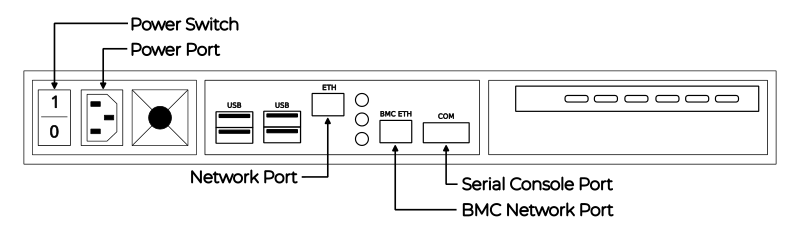
Sluit de BMC-netwerkpoort aan met een netwerkkabel.
Zie de afbeelding hieronder om de BMC-netwerkpoort te identificeren.
Standaard zal de BMC wachten op een adrestoewijzing met DHCP. Als DHCP niet beschikbaar is, kan het link-local adres worden bepaald met Nmap. Het commando nmap<network-in-cidr-notation>-p80--open geeft een lijst van hosts met open poort 80.
Open de BMC website in een webbrowser, met het IP-adres uit de vorige stap. Om in te loggen zijn de standaardgegevens gebruikersnaam bmc_admin en wachtwoord 8mCU$3r0nE.
Belangrijk
In case you encounter an unauthorized login error on the BMC web interface it can be one of the following issues.
Gebruikersnaam of wachtwoord verkeerd.
Tijdens een fabrieksreset genereert de BMC een nieuw TLS-certificaat. Sommige webbrowsers geven verbindingsfouten als het certificaat verandert terwijl hetzelfde venster geopend blijft. Sluit het webbrowservenster en open een nieuw.
De BMC software geeft soms het probleem dat het geen oudere sessiecookie accepteert die nog in de cache van de webbrowser staan. Wis de cache van de webbrowser en probeer het opnieuw.
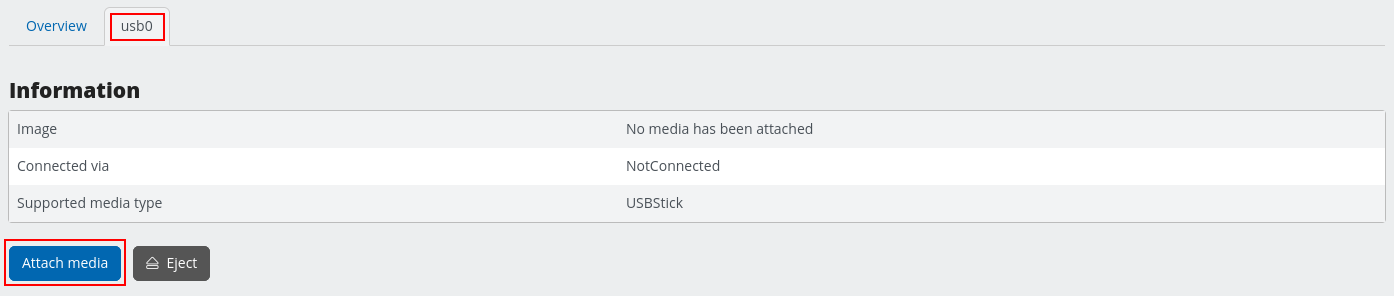
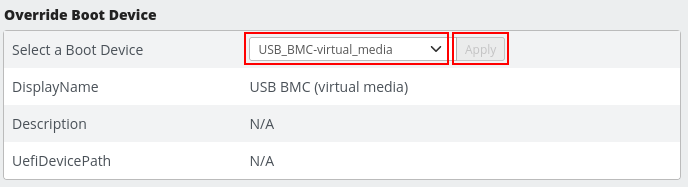
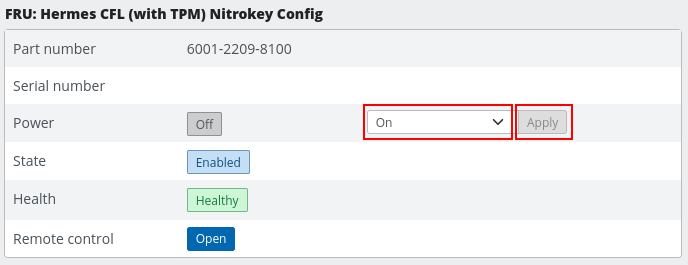
Mount the downloaded installer image by clicking in the menu on the left on FRU: Hermes CFL (with TPM) Nitrokey Config followed by Virtual media in the submenu.
In the middle open the tab usb0, and click the button Attach media.
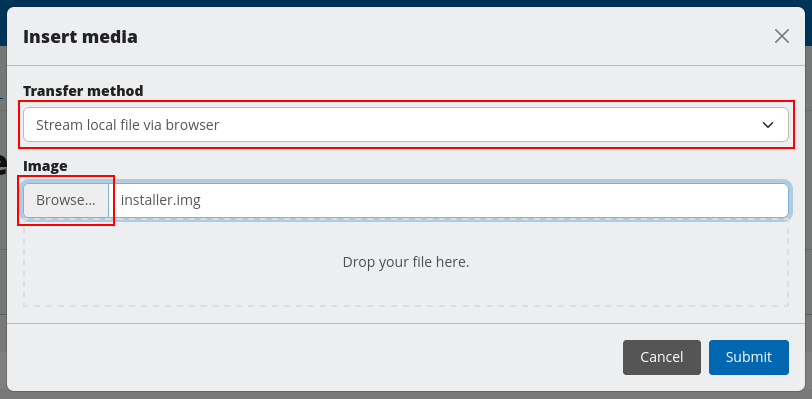
In the opening dialog choose Stream local file via browser as the Transfer method.
Click the button Browse… and choose the downloaded installer image.
Confirm the operation with the Submit button.