Turpmāk ir aprakstīts NetHSM sistēmas programmatūras atjaunināšanas process. Šo instalēšanas metodi drīkst izmantot tikai tad, ja atjauninājums, kas aprakstīts Software Update, nav pieejams. Rīkojieties precīzi saskaņā ar norādījumiem, lai novērstu nejaušu datu dzēšanu. Pirms atjaunināšanas veikšanas ieteicams izveidot NetHSM datu rezerves kopiju.
The system software update can be performed as follows.
Download the installer image ending with installer.img.zip from the provided private download page.
Izpako instalatora attēlu.
Write the installer image to a USB flash drive.
For this you could use the graphical tool balenaEtcher.
On Linux you could also use the command line tool dd.
Ignore any warning that a partition table is missing.
Pievienojiet USB zibatmiņu jebkuram USB portam priekšpusē vai vienam no diviem USB 2.0 portiem, kas atrodas ierīces aizmugures vidū. USB 2.0 portiem vidū ir melna ieliktņa.
Piezīme
Some USB drives are incompatible with the NetHSM.
This results in the NetHSM not recognizing them as a boot media.
In case the NetHSM does not boot from the connected USB drive, try a different USB drive model.
Izslēdziet NetHSM un atvienojiet to no strāvas padeves.
Connect a monitor and optionally a keyboard to the NetHSM.
Piezīme
Pārliecinieties, ka USB portiem ir pieslēgta tikai tastatūra un USB zibatmiņa.
Connect the NetHSM to power and wait for 10 seconds.
Turn on the NetHSM by pressing the power button on the front.
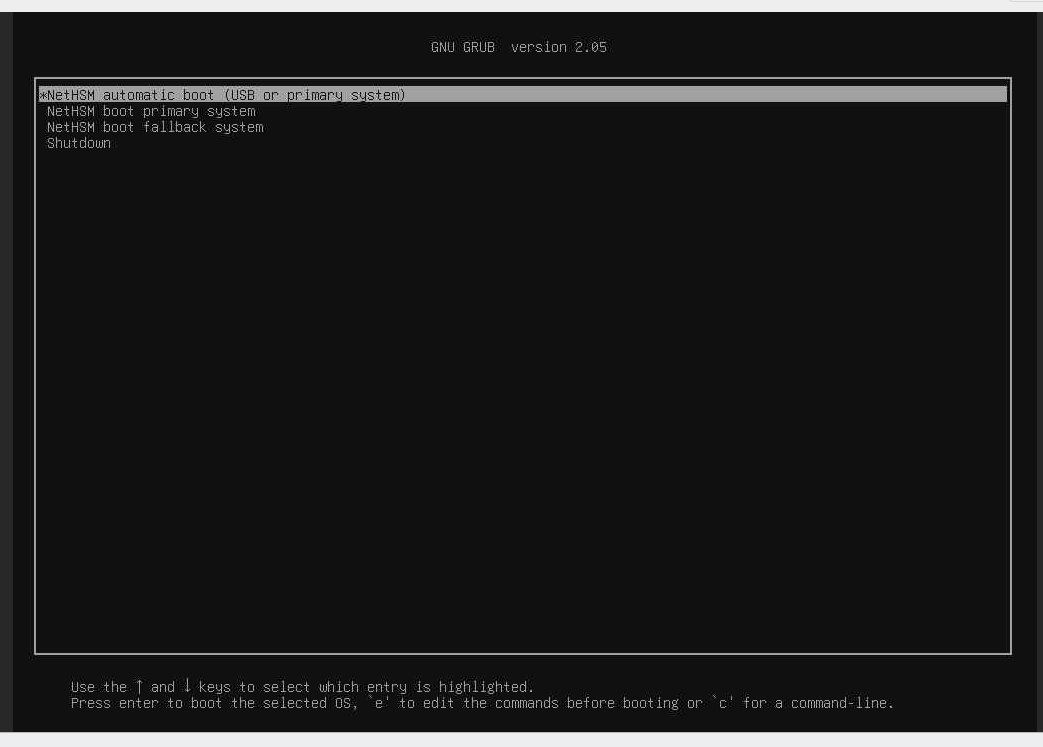
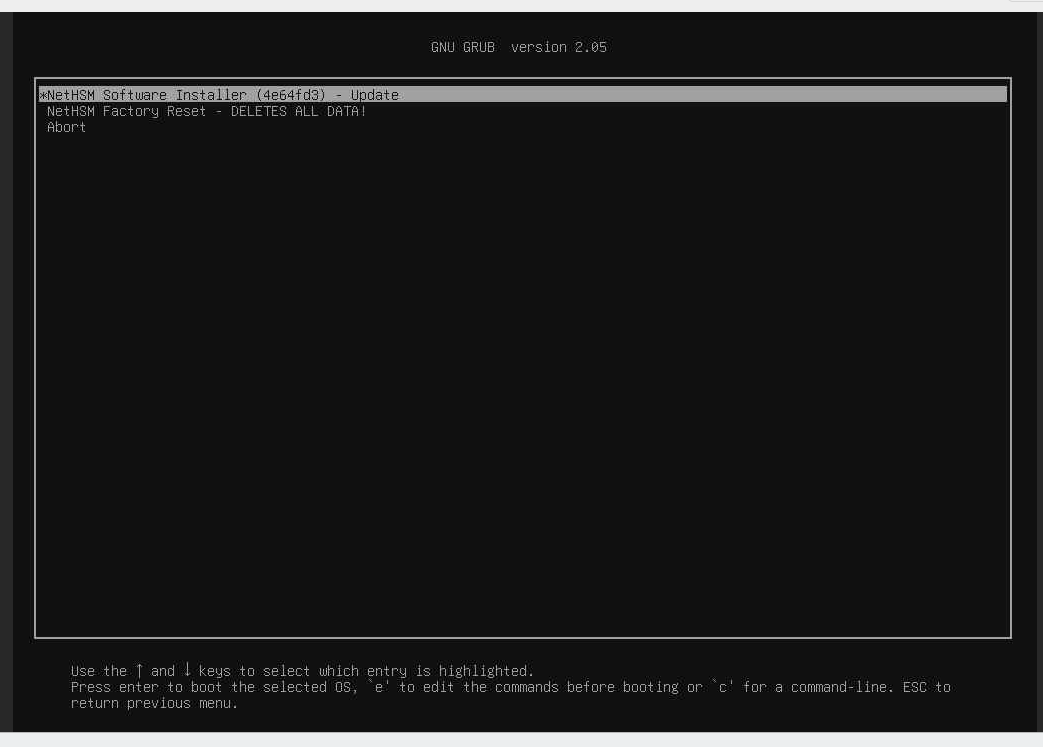
Apmēram pēc 30 sekundēm NetHSM uz monitora parādīs sākšanas izvēlni. Sākšanas izvēlnē pēc noklusējuma tiks izvēlēta programmatūras atjaunināšana. Tas aizņems apmēram 2 minūtes. Pēc atjaunināšanas ierīce automātiski izslēgsies.
Alternatively you can select NetHSM automatic boot (USB or primary system) in the first boot menu and then NetHSM Software Installer in the second boot menu.
Brīdinājums
Do NOT select NetHSM Factory Reset - DELETES ALL DATA! from the menu.
This will irrecoverably wipe the data on the disk.
Turn on the NetHSM by pressing the power button on the front.
Download the installer image ending with installer.img.zip from the provided private download page.
Izpako instalatora attēlu.
Pārliecinieties, ka sistēma ir izslēgta, bet pieslēgta pie strāvas, un aizmugurē ir ieslēgta barošanas poga.
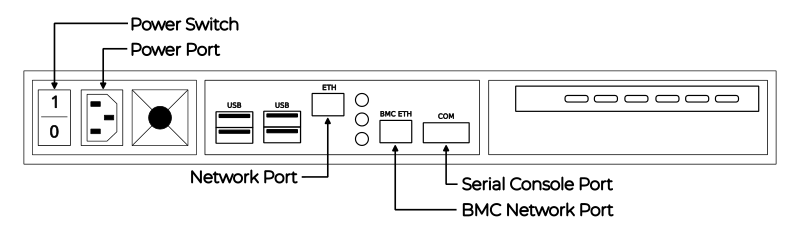
Savienojiet BMC tīkla portu ar tīkla kabeli.
Lai identificētu BMC tīkla portu, skatiet attēlu zemāk.
Pēc noklusējuma BMC gaidīs uz adreses piešķiršanu ar DHCP. Ja DHCP nav pieejams, link-local adresi var noteikt ar Nmap. Komanda nmap<network-in-cidr-notation>-p80--open atgriezīs sarakstu ar saimniekiem, kuriem ir atvērts 80 ports.
Atveriet BMC tīmekļa vietni tīmekļa pārlūkprogrammā, izmantojot iepriekšējā solī noteikto IP adresi. Lai pieteiktos, noklusējuma akreditācijas dati ir lietotājvārds bmc_admin un parole 8mCU$3r0nE.
Svarīgi
In case you encounter an unauthorized login error on the BMC web interface it can be one of the following issues.
Kļūdains lietotājvārds vai parole.
Rūpnīcas atiestatīšanas laikā BMC ģenerē jaunu TLS sertifikātu. Dažas tīmekļa pārlūkprogrammas neizdodas ar savienojuma kļūdām, ja sertifikāts tiek mainīts, bet tas pats logs paliek atvērts. Aizveriet tīmekļa pārlūkprogrammas logu un atveriet jaunu.
BMC programmatūra dažreiz parāda problēmu, ka tā nepieņem vecāku sesijas sīkfailu, kas joprojām atrodas tīmekļa pārlūkprogrammas kešatmiņā. Notīriet tīmekļa pārlūkprogrammas kešatmiņu un mēģiniet vēlreiz.
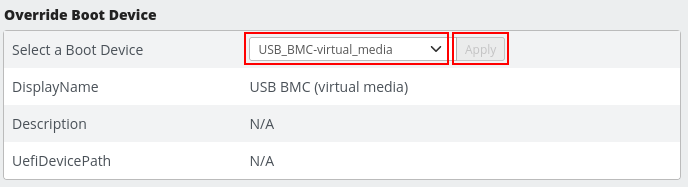
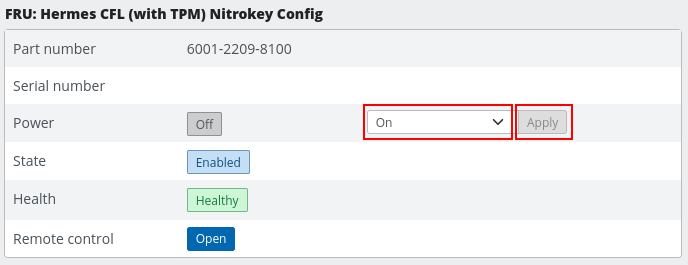
Mount the downloaded installer image by clicking in the menu on the left on FRU: Hermes CFL (with TPM) Nitrokey Config followed by Virtual media in the submenu.
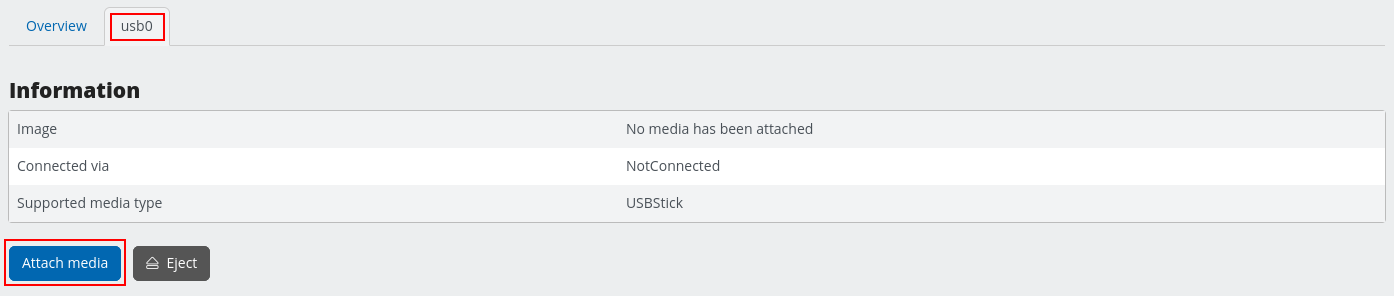
In the middle open the tab usb0, and click the button Attach media.
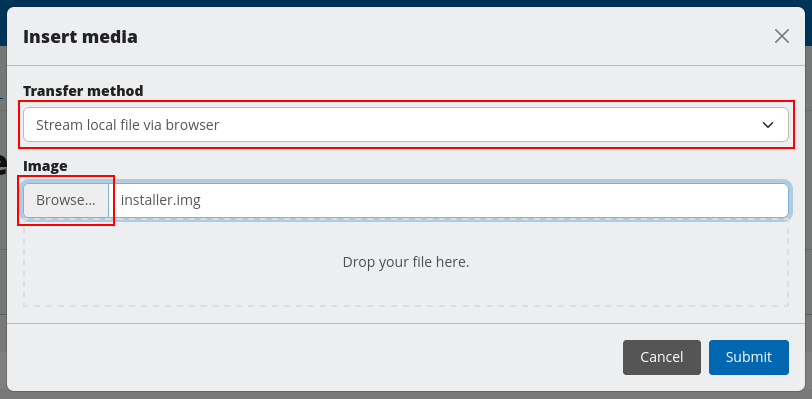
In the opening dialog choose Stream local file via browser as the Transfer method.
Click the button Browse… and choose the downloaded installer image.
Confirm the operation with the Submit button.