Az alábbiakban ismertetjük a NetHSM rendszerszoftver frissítésének folyamatát. Ezt a telepítési módszert csak akkor szabad alkalmazni, ha a Software Update oldalon leírt frissítés nem áll rendelkezésre. Kérjük, pontosan kövesse az utasításokat, hogy elkerülje az adatok véletlen törlését. Javasoljuk, hogy a frissítés végrehajtása előtt készítsen biztonsági másolatot a NetHSM-ről.
The system software update can be performed as follows.
Download the installer image ending with installer.img.zip from the provided private download page.
Csomagolja ki a telepítő képét.
Write the installer image to a USB flash drive.
For this you could use the graphical tool balenaEtcher.
On Linux you could also use the command line tool dd.
Ignore any warning that a partition table is missing.
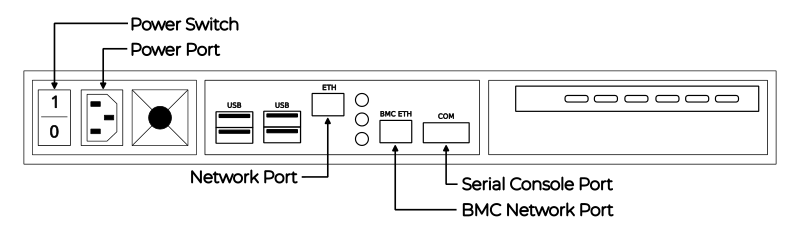
Csatlakoztassa az USB-meghajtót a készülék elülső részén található bármelyik USB-porthoz, vagy a készülék hátuljának közepén elhelyezkedő két USB 2.0-port egyikéhez. Az USB 2.0-portok közepén fekete betét található.
Megjegyzés
Some USB drives are incompatible with the NetHSM.
This results in the NetHSM not recognizing them as a boot media.
In case the NetHSM does not boot from the connected USB drive, try a different USB drive model.
Kapcsolja ki a NetHSM-et, és válassza le az áramellátásról.
Connect a monitor and optionally a keyboard to the NetHSM.
Megjegyzés
Győződjön meg arról, hogy az USB-portokhoz csak a billentyűzet és az USB-meghajtó van csatlakoztatva.
Connect the NetHSM to power and wait for 10 seconds.
Turn on the NetHSM by pressing the power button on the front.
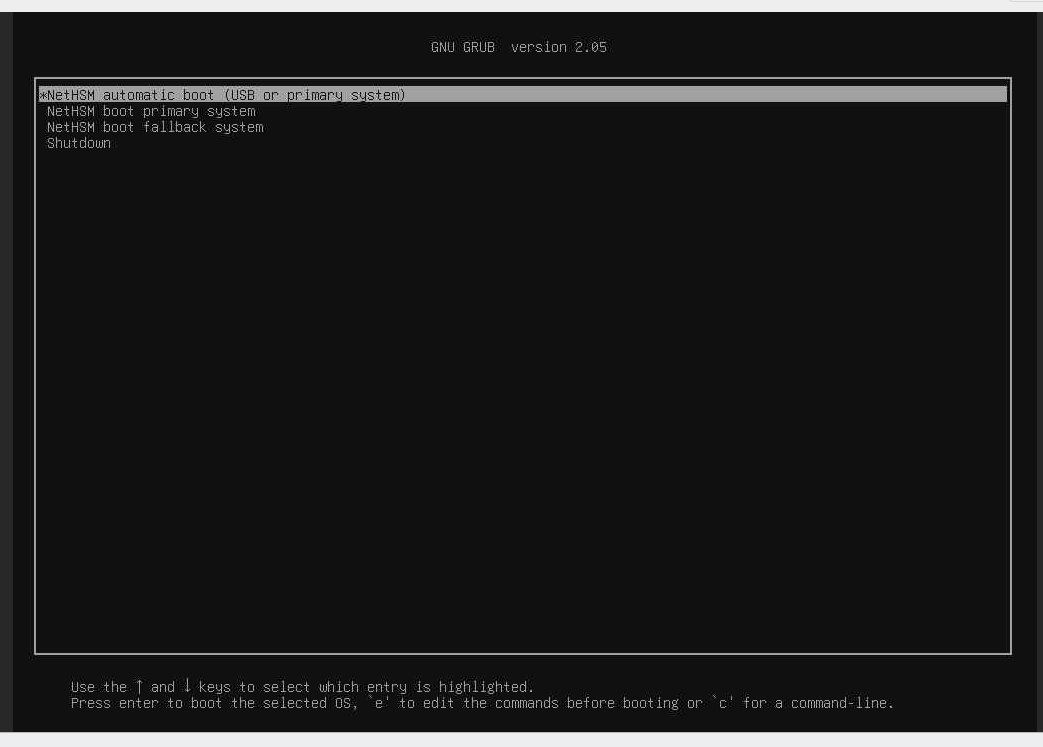
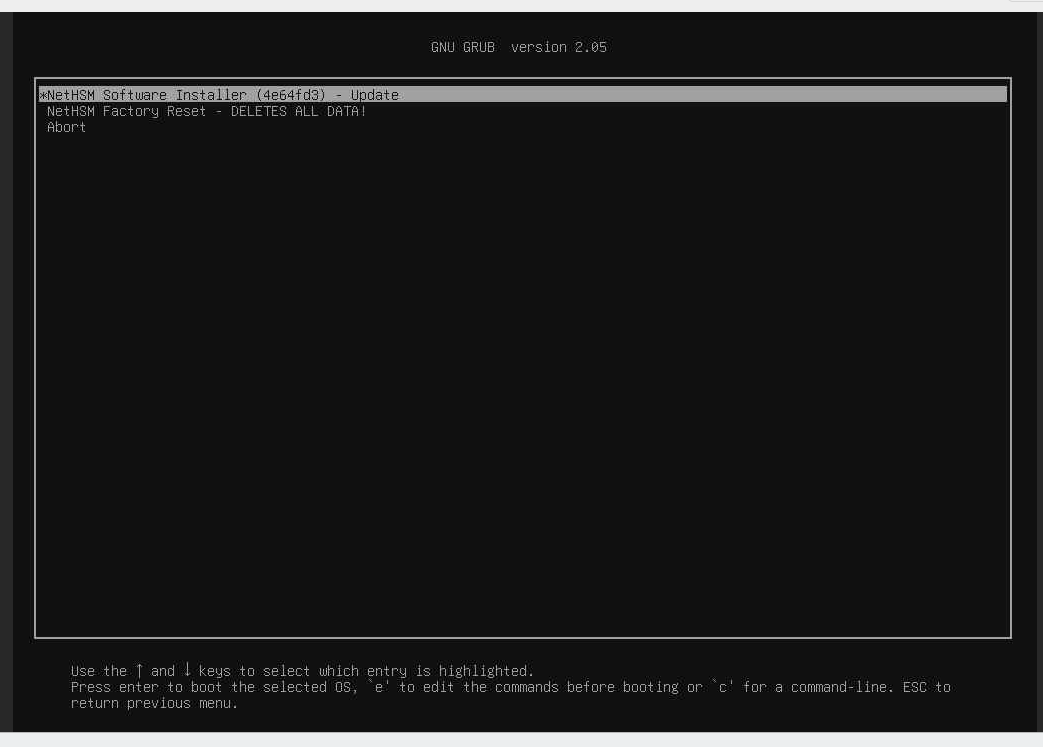
Körülbelül 30 másodperc múlva a NetHSM egy indítómenüt jelenít meg a monitoron. Az indítómenü alapértelmezés szerint a szoftverfrissítést hajtja végre. Ez körülbelül 2 percet vesz igénybe. A frissítés befejezése után a készülék automatikusan kikapcsol.
Alternatively you can select NetHSM automatic boot (USB or primary system) in the first boot menu and then NetHSM Software Installer in the second boot menu.
Figyelem
Do NOT select NetHSM Factory Reset - DELETES ALL DATA! from the menu.
This will irrecoverably wipe the data on the disk.
Turn on the NetHSM by pressing the power button on the front.
Download the installer image ending with installer.img.zip from the provided private download page.
Csomagolja ki a telepítő képét.
Győződjön meg róla, hogy a rendszer ki van kapcsolva, de áramhoz van csatlakoztatva, és a hátoldalon lévő bekapcsológomb be van kapcsolva.
Csatlakoztassa a BMC hálózati portját egy hálózati kábellel.
A BMC hálózati portjának azonosításához lásd az alábbi képet.
Alapértelmezés szerint a BMC megvárja a DHCP segítségével történő címkiosztást. Ha a DHCP nem áll rendelkezésre, a link-lokális cím meghatározható az Nmap segítségével. A nmap<network-in-cidr-notation>-p80--open parancs a 80-as porton nyitott hosztok listáját adja vissza.
Nyissa meg a BMC weboldalát egy webböngészőben az előző lépésben meghatározott IP-címmel. A bejelentkezéshez az alapértelmezett hitelesítő adatok a következők: bmc_admin felhasználónév és 8mCU$3r0nE jelszó.
Fontos
In case you encounter an unauthorized login error on the BMC web interface it can be one of the following issues.
A felhasználónév vagy a jelszó rossz.
A gyári visszaállítás során a BMC új TLS-tanúsítványt generál. Egyes webböngészők kapcsolati hibával hibáznak, amikor a tanúsítvány megváltozik, miközben ugyanaz az ablak nyitva marad. Zárja be a webböngésző ablakát, és nyisson egy újat.
A BMC szoftver néha azt a problémát mutatja, hogy nem fogadja el a régebbi munkamenet-sütiket, amelyek még mindig a webböngésző gyorsítótárában vannak. Törölje a webböngésző gyorsítótárát, és próbálja meg újra.
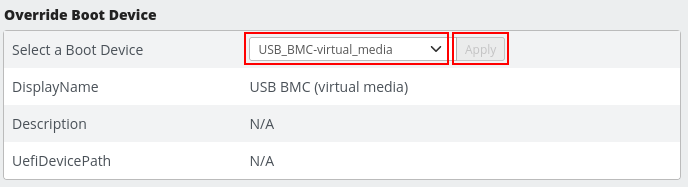
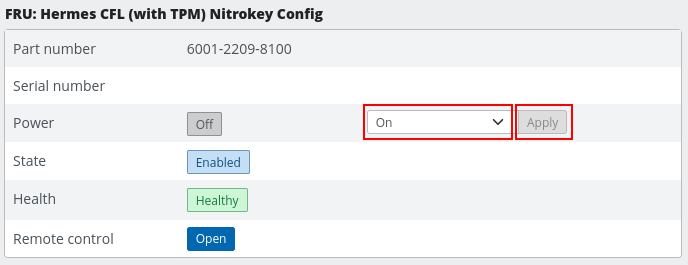
Mount the downloaded installer image by clicking in the menu on the left on FRU: Hermes CFL (with TPM) Nitrokey Config followed by Virtual media in the submenu.
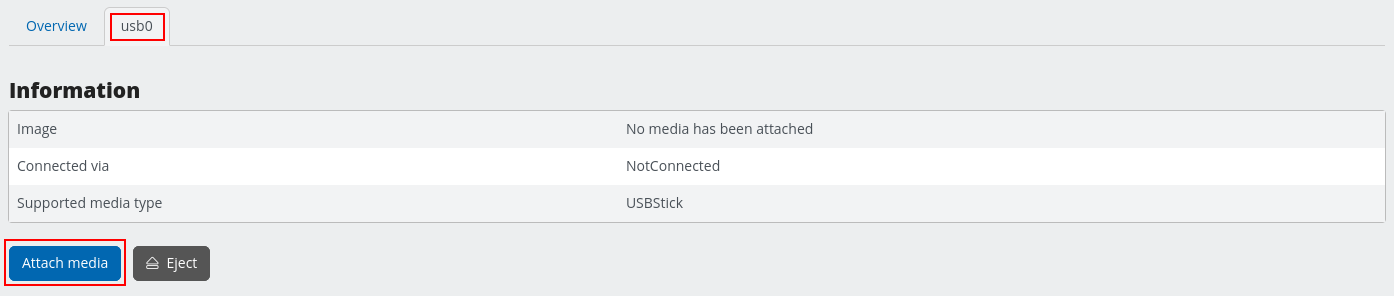
In the middle open the tab usb0, and click the button Attach media.
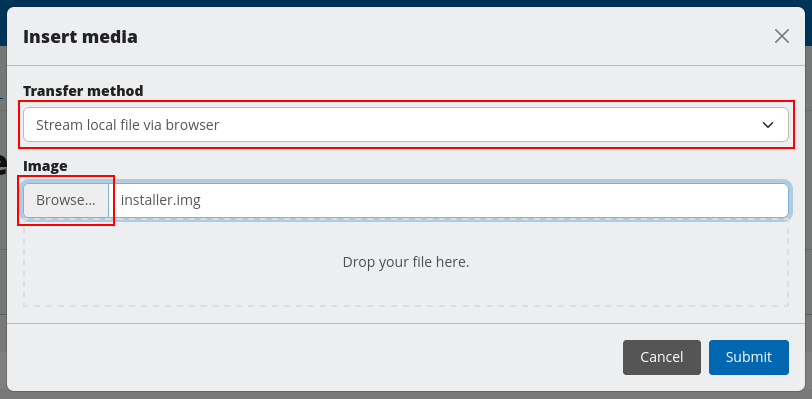
In the opening dialog choose Stream local file via browser as the Transfer method.
Click the button Browse… and choose the downloaded installer image.
Confirm the operation with the Submit button.